
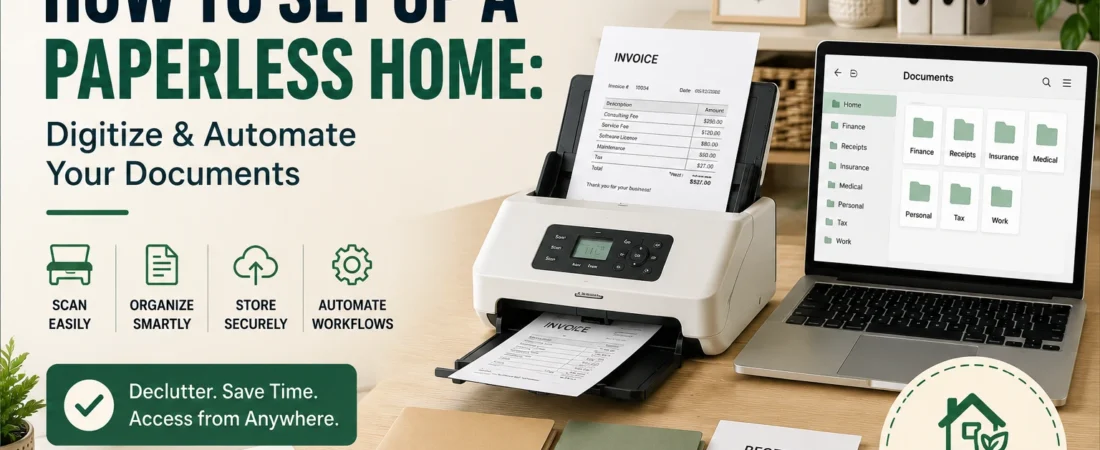
How to Set Up a Paperless Home: Digitize and Automate Your Documents
The average American spends nearly 17 hours a year searching for lost items, and most of those items are paper. This paperless home setup guide covers 5 steps to digitize everything worth keeping and stop paper clutter for good.
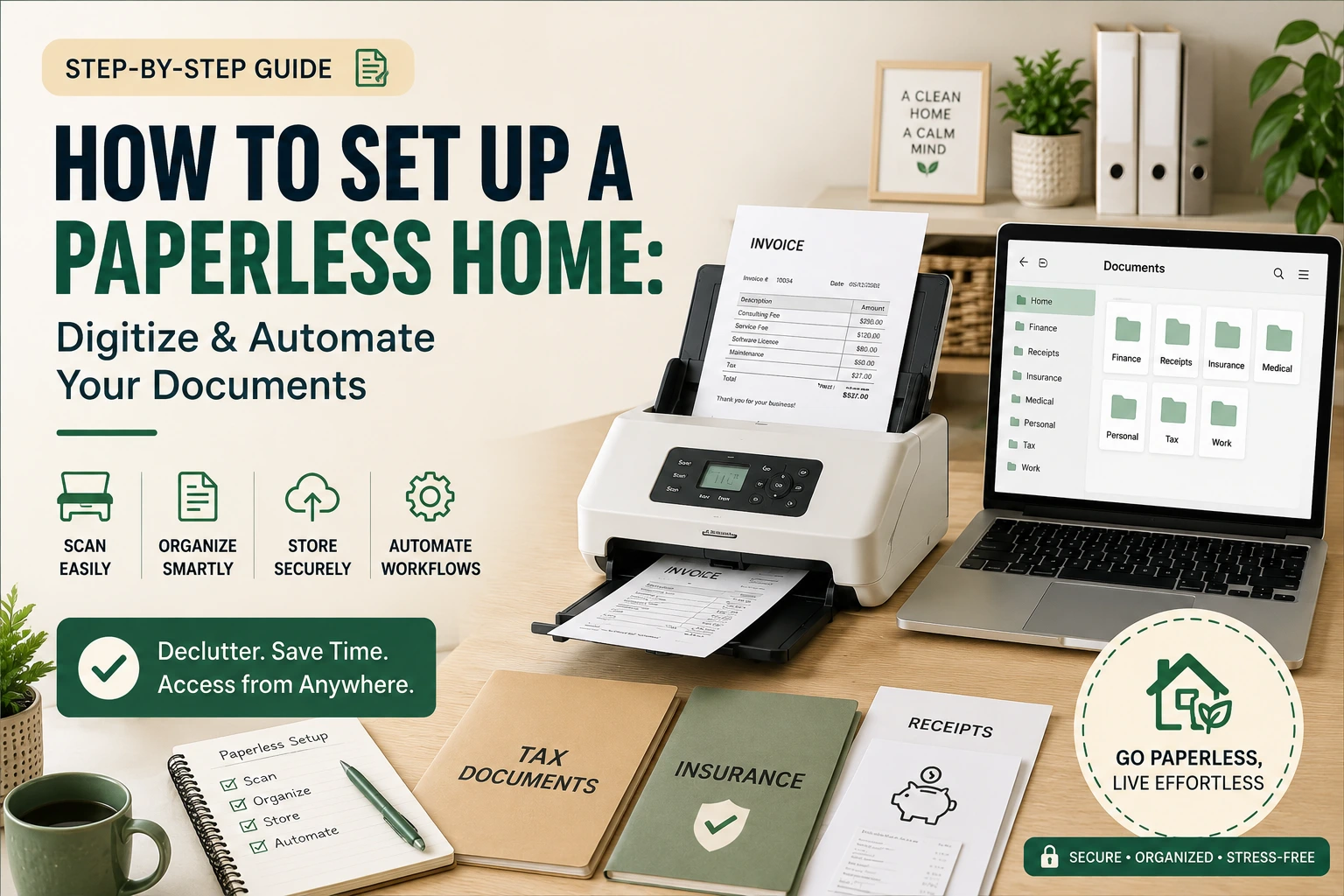
According to a 2024 Shane Co. survey, the average American spends nearly 17 hours per year searching for lost or misplaced items — roughly 16 minutes per search, five times a month (Shane Co. survey, reported via WYMT, August 2024 — retrieved May 2026). Paper is the single largest contributor at home. Bills, insurance cards, tax documents, school notices, and hundreds of pieces of junk mail pile up because paper has no natural endpoint in most homes.
I spent 40 minutes looking for my car’s original purchase agreement and found it buried under three years of expired warranties. The paperless home setup I built after that took one Saturday to complete and has required almost no maintenance since. It fits directly into the broader lazy-proof home organization system — each step works on its own, but they compound.
A paperless home setup is a household system that replaces physical documents with searchable digital copies, files them in the cloud, and stops new paper at the source. Done right, setup takes one Saturday and ongoing maintenance takes about 5 minutes per week.
What You Need to Know
- In 2024, the average American spends nearly 17 hours per year searching for lost or misplaced items — roughly 16 minutes per search (Shane Co. survey, 2024 — retrieved May 2026).
- In 2024, 57.5 billion of 112.5 billion pieces of US mail were marketing mail — 51% of your mailbox is junk by volume (USPS OIG, 2024 — retrieved May 2026).
- Steps 1 and 4 of this system cost nothing. Step 3 is free if you own a smartphone — Microsoft Lens and Adobe Scan both produce searchable PDFs at no cost.
- After the initial setup, the system runs on 5 minutes of weekly paper processing and one 15-minute annual purge.
Why Is Your Home Buried in Paper, and Why Won’t It Stop?
In 2024, 57.5 billion of the 112.5 billion pieces of mail delivered in the United States were marketing mail — meaning 51% of everything in your mailbox is junk by volume (USPS OIG, “Analysis of Historical Mail Volume Trends,” 2024 — retrieved May 2026). That’s before counting bills, statements, receipts, school papers, and product manuals. Paper doesn’t just pile up. It compounds. Each piece that lands without a destination becomes part of a stack, and stacks become the background noise of every room.
A November 2025 YouGov poll of 28,415 U.S. adults found that 40% describe their homes as cluttered — 9% very cluttered and 31% somewhat cluttered (YouGov, “How Cluttered Is Your Home?” November 2025 — retrieved May 2026). Paper clutter creates the same cognitive load covered in the kitchen decision fatigue guide: visual noise competes for working memory before you’ve made a single meaningful decision for the day. The fix isn’t a bigger filing cabinet. It’s two things: stopping the inflow, and converting the backlog into something retrievable in under 30 seconds.
How Do You Stop New Paper From Entering Your Home?
In 2023, U.S. households received an average of 354 pieces of direct marketing mail per year — roughly 7 pieces per week of mail you didn’t ask for — according to USPS delivery data compiled by Statista (Statista, “U.S. Direct Mail Volume by Household,” 2023 — retrieved May 2026). Stopping the inflow before digitizing anything removes the root cause. Most people skip this step and find themselves managing a paper problem that never actually shrinks. In any paperless home setup, stopping inflow comes before scanning a single document.
Three actions that stop 70–80% of new paper within 6 weeks:
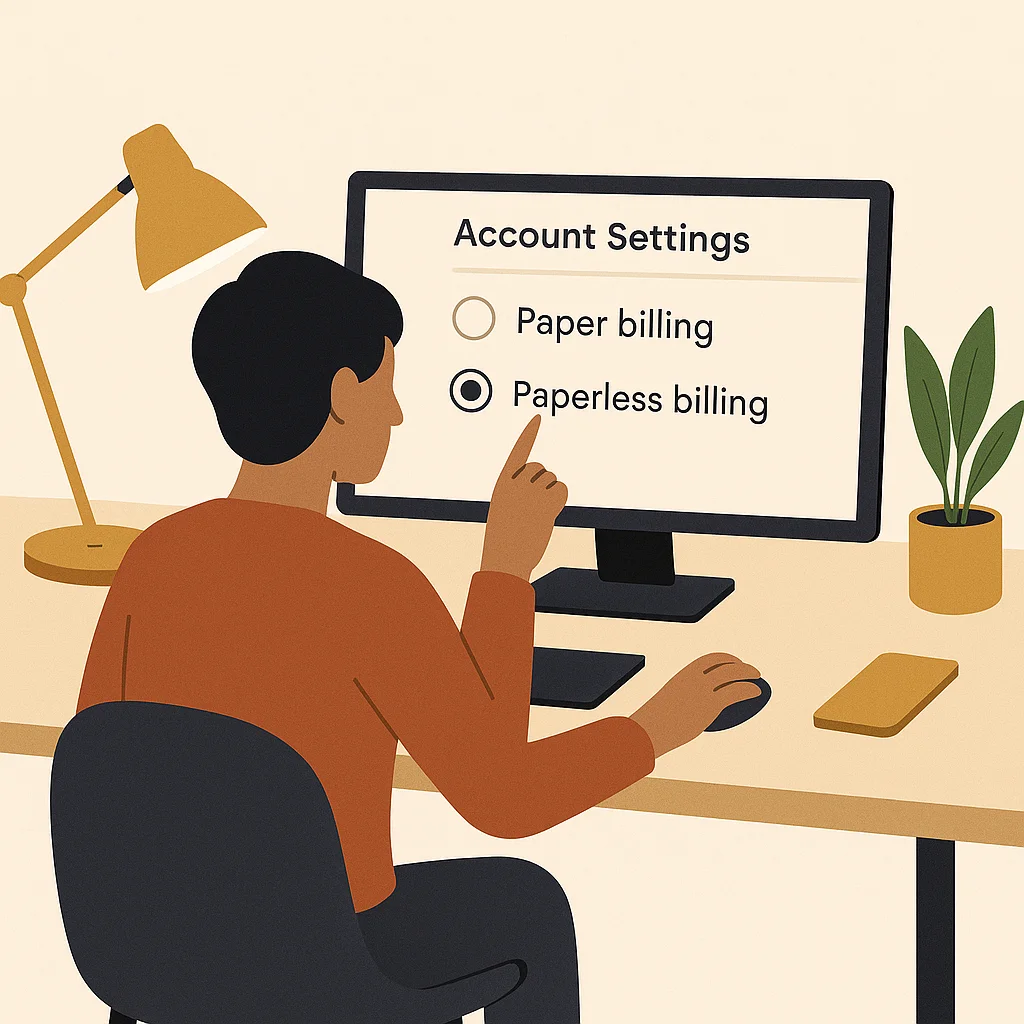
- Switch every account to paperless billing. Log into your bank, credit cards, utilities, insurance, and subscriptions. Find “paperless statements” or “e-statements” in account settings. Takes 2–3 minutes per account. Many providers offer a $5–$10 annual discount for switching.
- Opt out of direct mail. Register at DMAchoice.org (the Direct Marketing Association opt-out service). It removes your address from most catalog, credit offer, and promotional mail lists. Free, takes 5 minutes, runs for 10 years per registration.
- Cancel physical catalogs directly. Use Catalog Choice (catalogchoice.org, free) to opt out of specific catalogs by name. Works permanently per catalog.
These three changes require no purchases and take under 30 minutes total. This is the same inflow-first logic from the home automation beginners guide: eliminate the source before managing the symptom.
How Do You Sort Through Years of Paper Clutter?
The Three-Pile Sort Method
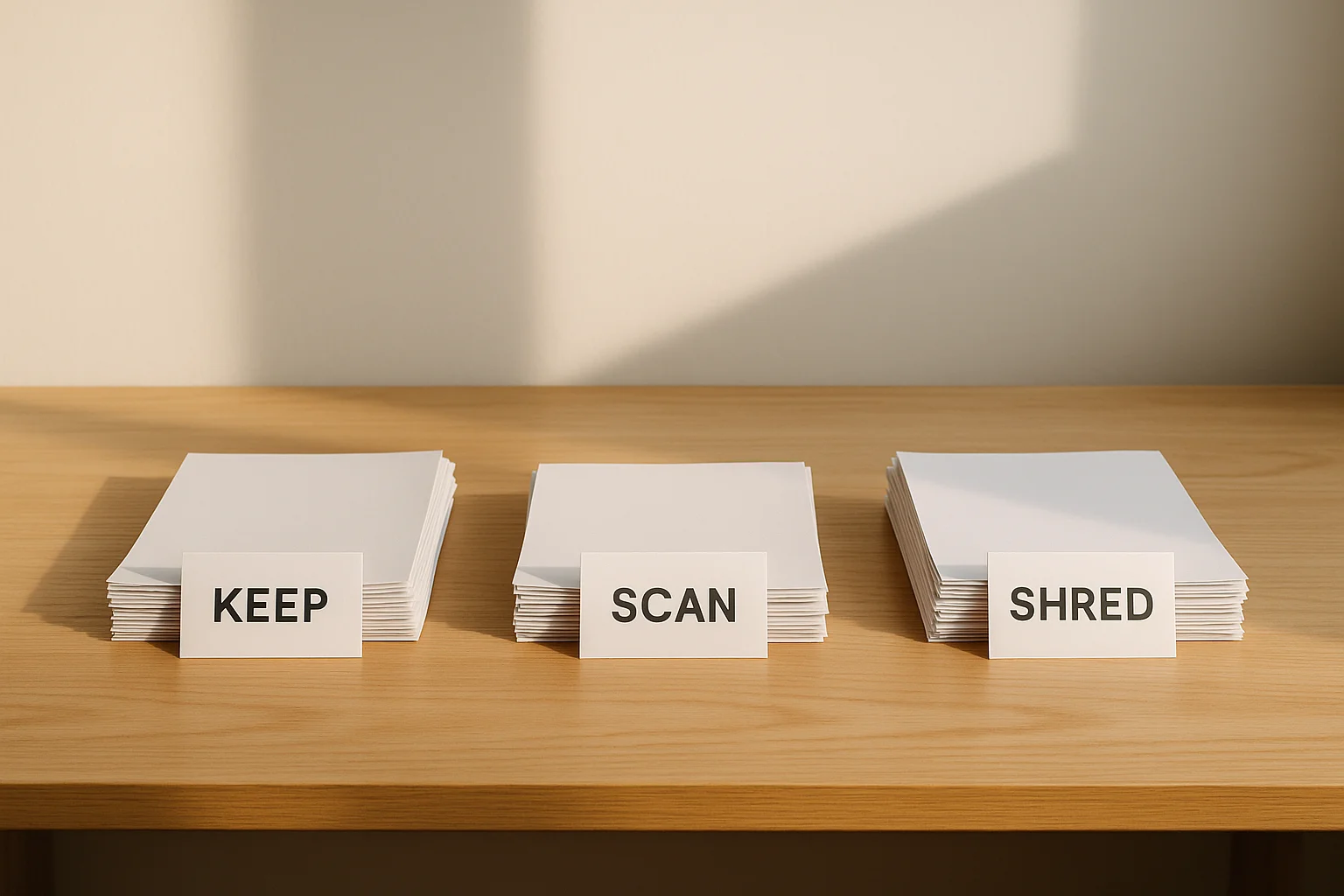
The sort uses three piles: Shred (personal information that doesn’t need to be kept), Scan & Keep Original (legal documents with raised seals that must stay physical), and Scan & Shred (everything worth digitizing but not requiring a paper original). The IRS generally requires keeping tax records for a minimum of 3 years from the filing date, extended to 7 years if income was underreported by 25% or more (IRS, “Topic No. 305 — Recordkeeping,” 2025 — retrieved May 2026). Knowing the retention schedule is what makes the sort fast — you stop asking “should I keep this?” and start asking “does this meet the threshold?”
My own paper sort revealed 4 years of utility bills I’d never opened and duplicate copies of every tax document going back to 2017. I kept one thin folder of physical originals — birth certificate, property deed, passport copies. Everything else was either scanned or shredded. The sort took 75 minutes. I’ve done zero paper sorting since. Getting the sort right is the step that makes the entire paperless home setup permanent.
Documents That Must Stay Physical
Documents that must stay physical (scan as backup, keep the original): birth and death certificates, Social Security cards, passports, original property deeds, marriage and divorce certificates, military discharge papers (DD-214), wills, and notarized contracts with original signatures. These belong in a fireproof box or bank safe deposit box — not in a desk drawer.
What’s the Fastest Way to Digitize Your Paper Backlog?
By 2025, the global document scanning services market reached $5.16 billion, growing at 10.7% per year — a clear signal that converting paper to digital has become standard practice, not a niche habit (The Business Research Company, “Document Scanning Services Global Market Report,” 2025 — retrieved May 2026). For most paperless home setups, a free smartphone app handles the entire backlog without any hardware purchase.
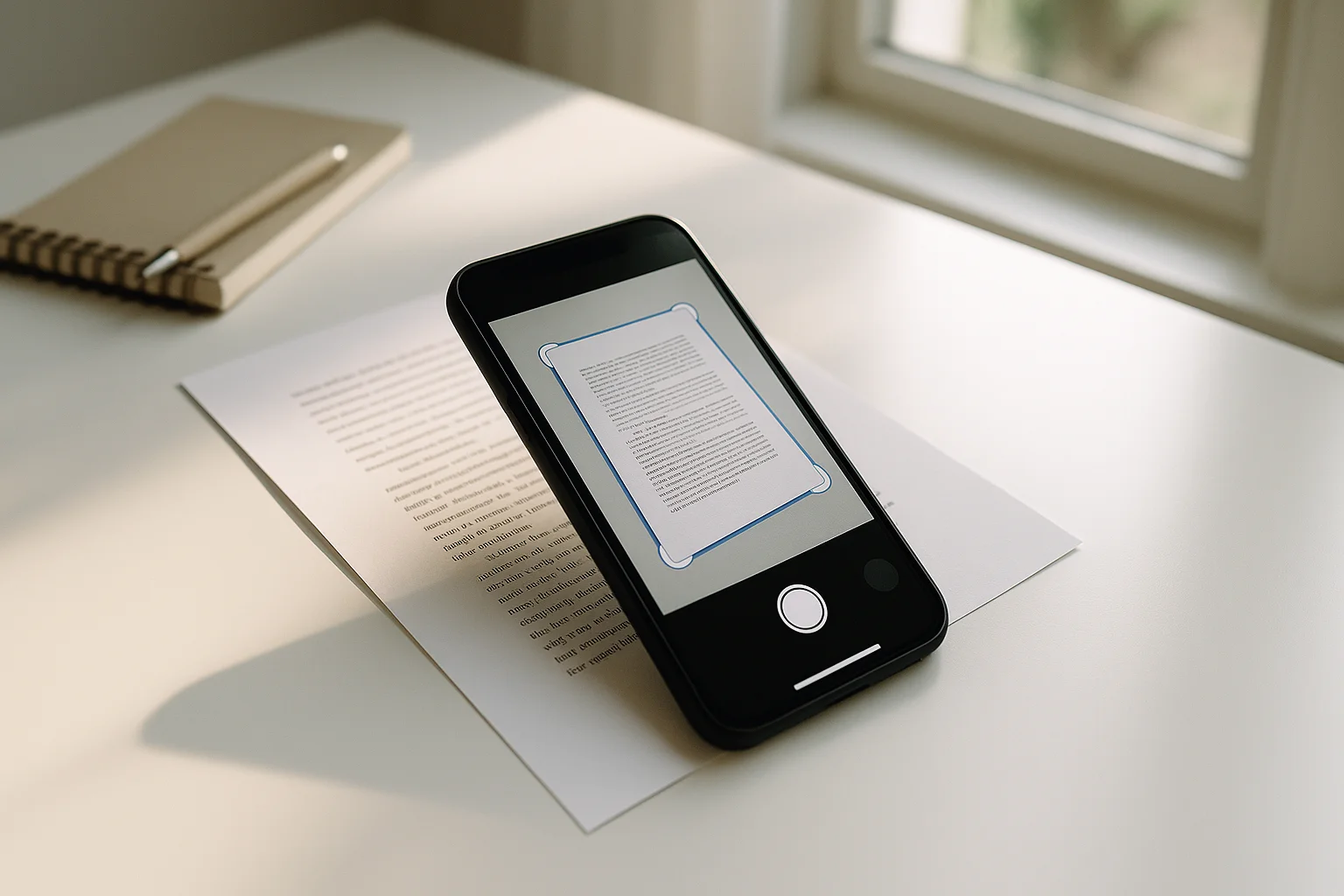
Free Smartphone Apps: Best for Most Households
Free smartphone options (both produce OCR-searchable PDFs):
- Microsoft Lens (iOS/Android, free) — auto edge detection, exports to PDF or Word, syncs directly to OneDrive
- Adobe Scan (iOS/Android, free) — excellent document sharpening, exports as searchable PDF, syncs to Adobe Document Cloud
When a Dedicated Scanner Is Worth It
When a dedicated scanner pays for itself: If you have a backlog of 100 or more pages, the Fujitsu ScanSnap iX1600 (~$400) scans 40 double-sided pages per minute and syncs directly to Google Drive, Dropbox, or a local folder. It reduces a day of phone scanning to two hours. The 2024 iX1600 model is also available.
| Feature | Smartphone App (Free) | Dedicated Scanner (~$400) |
|---|---|---|
| Cost | Free (Microsoft Lens, Adobe Scan) | Fujitsu ScanSnap iX1600 ~$400 |
| Speed | 1 page per tap | 40 double-sided pages/min |
| OCR (searchable PDFs) | ✓ On by default | ✓ Built in |
| Best for | Backlog under 100 pages | Backlog 100+ pages or ongoing home office use |
| Cloud sync | Google Drive, OneDrive, Dropbox | Google Drive, Dropbox, local folder |
The most common home scanning mistake is skipping OCR. A scanned image without optical character recognition is as unsearchable as the paper original — you’ve only changed the format, not the retrieval problem. Microsoft Lens and Adobe Scan enable OCR by default. If you already have scans without OCR, run them through Adobe Acrobat’s free online OCR tool at acrobat.adobe.com.
File naming rule: Date first (YYYY-MM-DD format), then document type: 2026-05-24_tax-return-2025.pdf. This forces every file to sort chronologically in any folder without manual organization. Combined with the smart home device principles for organization, it creates a retrieval system that works without any maintenance decisions.
What Is the Best Way to Organize Your Paperless Home Documents?
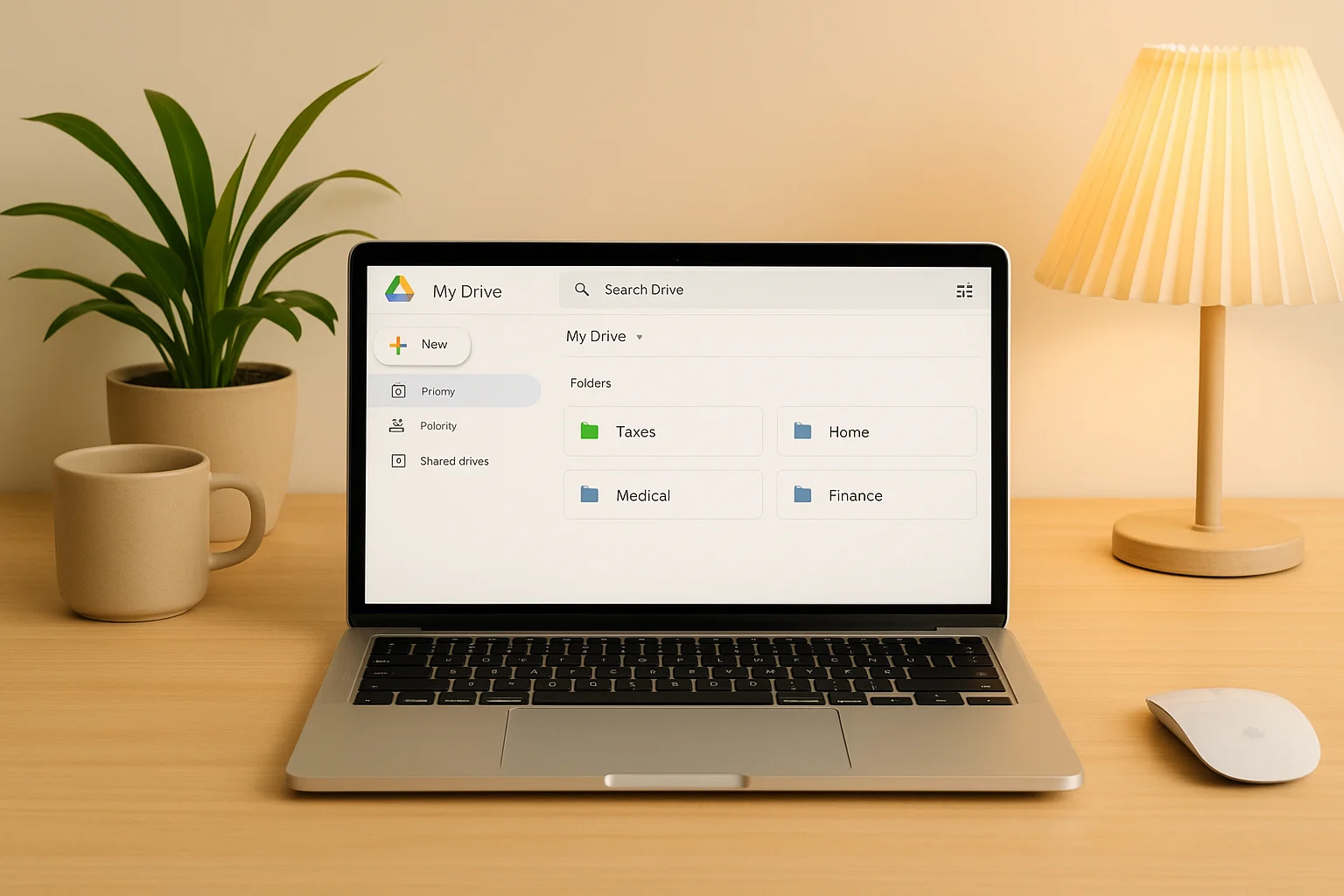
Most people build the wrong digital folder structure for a paperless home setup: too many sub-categories that recreate the original search friction in digital form. The right approach is to start with 5–7 top-level categories and only create a sub-folder when a parent folder exceeds 20 files. Add structure when you need it — not in anticipation of needing it.
Recommended home folder structure:
- /Taxes/ — returns + supporting docs, sub-folders by year
- /Home/ — mortgage, insurance, repair receipts, HOA documents
- /Medical/ — records, explanations of benefits, insurance cards
- /Finance/ — bank statements, investment statements, loan documents
- /Auto/ — registration, insurance, service history
- /Identity/ — scanned passports, birth certificates, Social Security cards (password-protected PDFs only)
- /Warranties/ — product manuals and receipts for major purchases
Store this paperless home setup structure in Google Drive (free 15 GB — enough for a decade of text PDFs), Dropbox, or iCloud. Cloud storage provides device-agnostic access and automatic backup. In practice, a text-based home archive stays well under 2 GB after a decade of accumulated documents. Text PDFs are small files, and most homes use only a small fraction of Google Drive’s free 15 GB allocation.
How Should You Automate Your Home Document System?
With the inflow stopped and the backlog digitized, the final step in your paperless home setup closes the loop: automate the steady-state so the system runs without ongoing effort. A November 2025 YouGov poll found that 40% of U.S. adults describe their homes as cluttered (YouGov, “How Cluttered Is Your Home?” November 2025 — retrieved May 2026). The ones who stay paperless long-term aren’t more disciplined — they’ve built systems that handle the filing automatically.
Four Automations for Indefinite Maintenance
Four automations that keep the system running indefinitely:
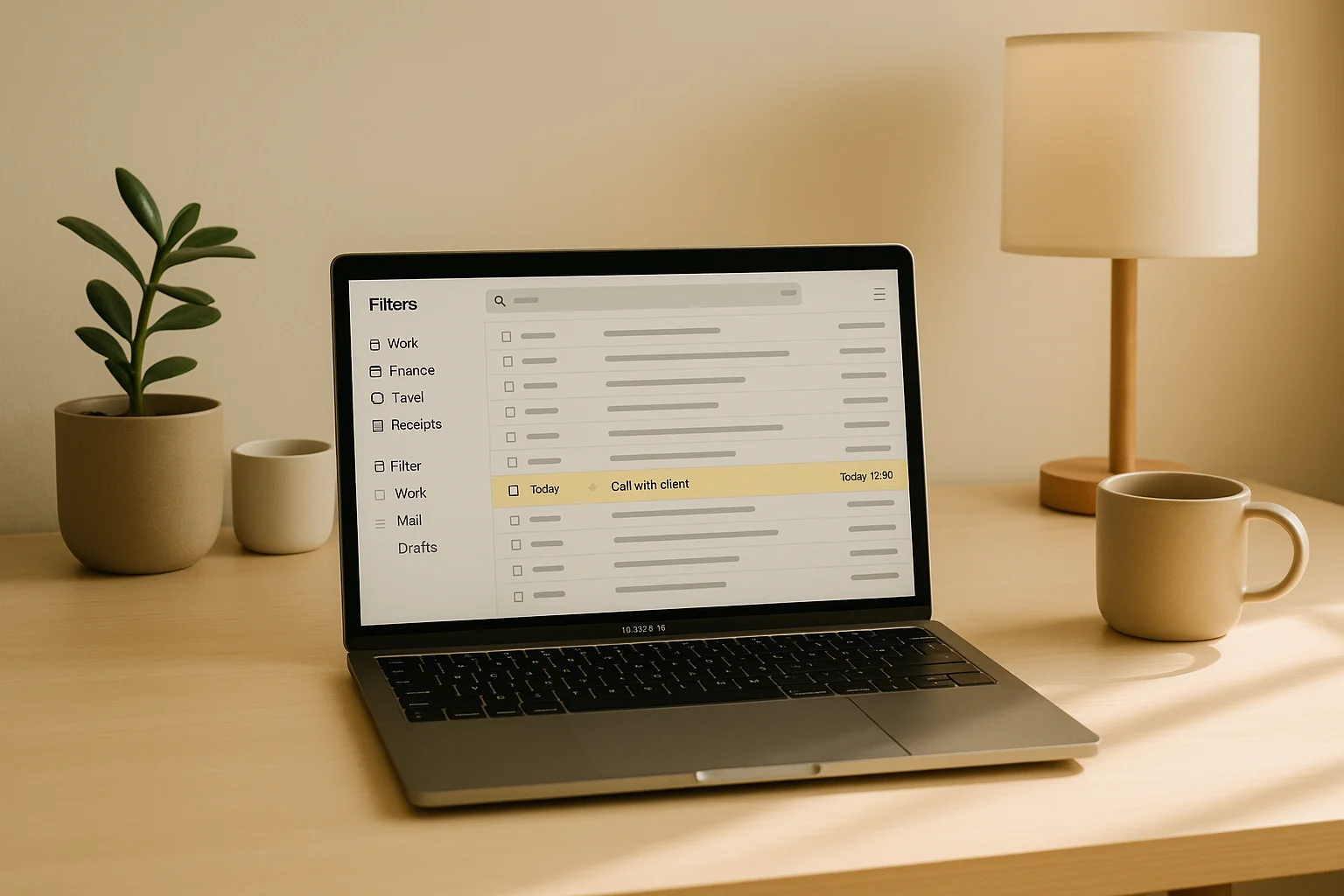
- Email-to-folder filters: In Gmail, create a filter for each financial sender: bank, credit card, utilities, insurance. Set the filter to apply a label (e.g., “Finance/Statements”) and skip the inbox automatically. Takes 3 minutes per sender, runs permanently. Every statement archives on arrival without a manual step.
- Annual purge reminder: Set a single recurring calendar event each January 1: “Purge documents older than [retention period].” This single 15-minute task once per year prevents the digital folder from replicating the paper pile.
- Second backup (3-2-1 rule): Cloud storage is primary storage, not a backup. Apply the 3-2-1 rule: 3 copies, 2 media types, 1 offsite. A free Backblaze account or auto-backup to Google Photos handles the offsite copy automatically.
- Paperless-by-default for new accounts: Every new service or account gets paperless turned on during signup — not as a follow-up action, but as part of setup. This permanently closes the inflow loop for every new relationship.
The whole system — all 5 steps — applies the same core principle from the automated morning routine guide: remove the decision from the equation entirely. You don’t file manually. The email filter does it. You don’t remember to purge. The calendar event reminds you once a year.
Frequently Asked Questions
What documents should I never shred?
Never shred documents with raised seals or legal authority: birth certificates, death certificates, Social Security cards, passports, marriage and divorce certificates, military discharge papers (DD-214), original property deeds, wills, and powers of attorney. Scan these as digital backups and store the physical originals in a fireproof box or bank safe deposit box. The scan is a reference copy; the original cannot be replaced.
Is it safe to store important documents in the cloud?
Yes, with one precaution: password-protect sensitive PDFs before uploading. Google Drive and Dropbox both use AES-256 encryption for storage and transit. For Social Security card scans, passport copies, and financial records, add a document-level password using Adobe Acrobat or PDF Expert before uploading. This adds a second layer of protection even if cloud account credentials are compromised.
What’s the cheapest way to start going paperless?
Steps 1 and 4 cost nothing. Switch all accounts to e-statements online, download Microsoft Lens (free, iOS and Android), and build your folder structure in Google Drive (free, 15 GB). You can complete the entire 5-step paperless home setup at zero cost if you already own a smartphone. The only optional purchase is a dedicated scanner — worth it only if your backlog exceeds 100 pages.
How long should I keep bank statements?
The IRS recommends keeping records that support a tax return for at least 3 years from the filing date (IRS, Topic No. 305, 2025 — retrieved May 2026). Keep bank and credit card statements for 3 years. If you’re self-employed or you’ve significantly underreported income, the IRS extends this to 6 years. Once digitized and the retention period has passed, shred the paper originals with a crosscut shredder.
Do I need a scanner or can I use my phone?
For most households, a free phone app handles the entire backlog. Microsoft Lens and Adobe Scan both produce OCR-searchable PDFs at no cost — identical in quality to a dedicated scanner for standard documents. A dedicated scanner like the Fujitsu ScanSnap iX1600 is worth the investment only if you have a large initial backlog (100+ pages) or ongoing high-volume scanning needs for a home office or business.
Your Paperless Home Setup: Start With One Account
A fully paperless home isn’t built in a weekend, but the single highest-leverage first step takes 5 minutes: switch one financial account to e-statements today. That one change permanently removes 12 paper items per year. Repeat it three times and you’ve removed 48. Once the inflow slows, sorting and scanning the existing backlog becomes a single Saturday project rather than an ongoing battle.
The same reduction-by-design logic runs through every step in this guide and through the full lazy-proof home organization system: stop the source, process the backlog, automate the future, and stop managing the outcome manually. Paper is one of many decision points your paperless home setup removes. The rest of the house follows the same blueprint.

Mahdy Khairudin
Mahdy founded Neatara in 2023 and has spent three years testing home organization systems, smart home setups, and paperless workflows for budget-conscious households. He focuses on what genuinely reduces daily friction, not what just adds more products to manage. More about Mahdy